
Creating a Custom Export Preset
By creating your own presets, you can configure export settings that perfectly match your specific needs. Custom export presets streamline your workflow by ensuring consistency across multiple exports, saving you time and eliminating the need for repetitive adjustments.
-
Select the photo(s) you wish to export, and click the Share icon

- Choose the sharing method you’d like to use (e.g., System Clipboard, Email, Export, etc.).
- Tailor the export options to fit your project or workflow. If desired, you may choose an existing preset as a starting point and then modify it.
-
Click on the preset drop-down menu at the top of the panel, then choose Save as New Preset.
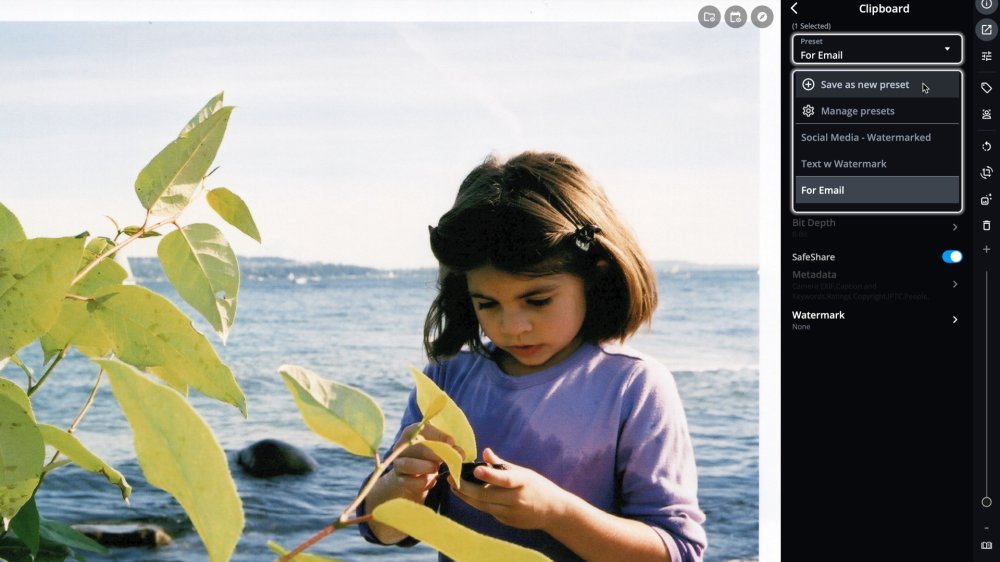
- Enter a name for your preset, then click Save.
- The next time you’d like to use this preset, click the preset drop-down menu and select it from the list.


Learn More: https://manual.mylio.com/topic/using-and-creating-export-presets