
TIP: If you’re installing for the first time and have not installed and activated Mylio Photos+ on another device, click here for instructions.
- Open the Google Play app (Android) or App Store (iOS) and search for Mylio Photos.
- Tap Install (Android) or Get (iOS).
- Enter your Google Play password or iCloud password if prompted to confirm the download.
-
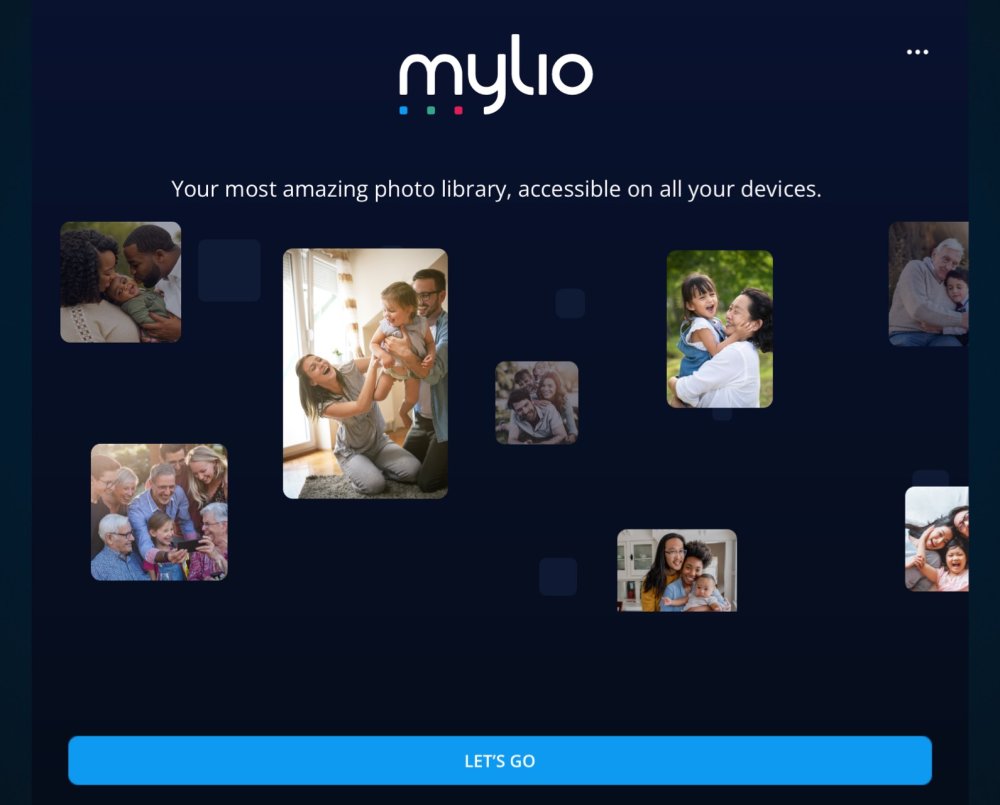
Open the Mylio Photos app and tap the Let’s Go button.
- Enter your email address and click Continue. A single-use login link will be sent to your email address.
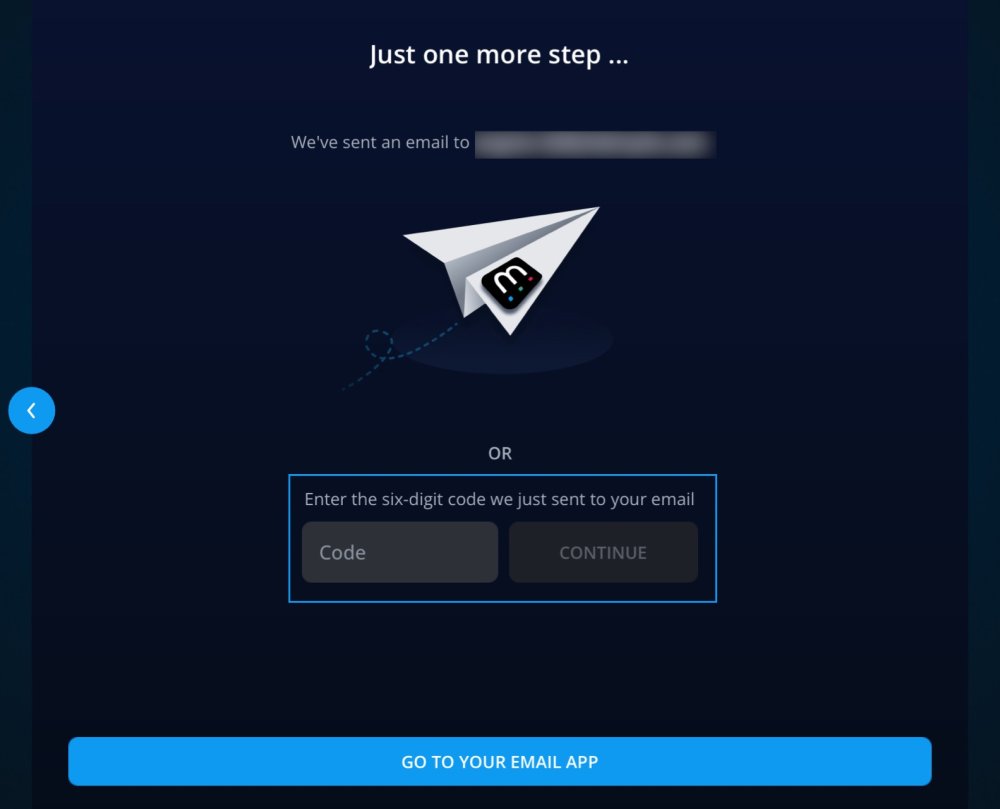
- Check your email and copy the six-digit login code or tap the Click Here to Log Inbutton in your email.

-
If you are using the six-digit login code, switch to the Mylio Photos app and enter the code you copied from your email.

-
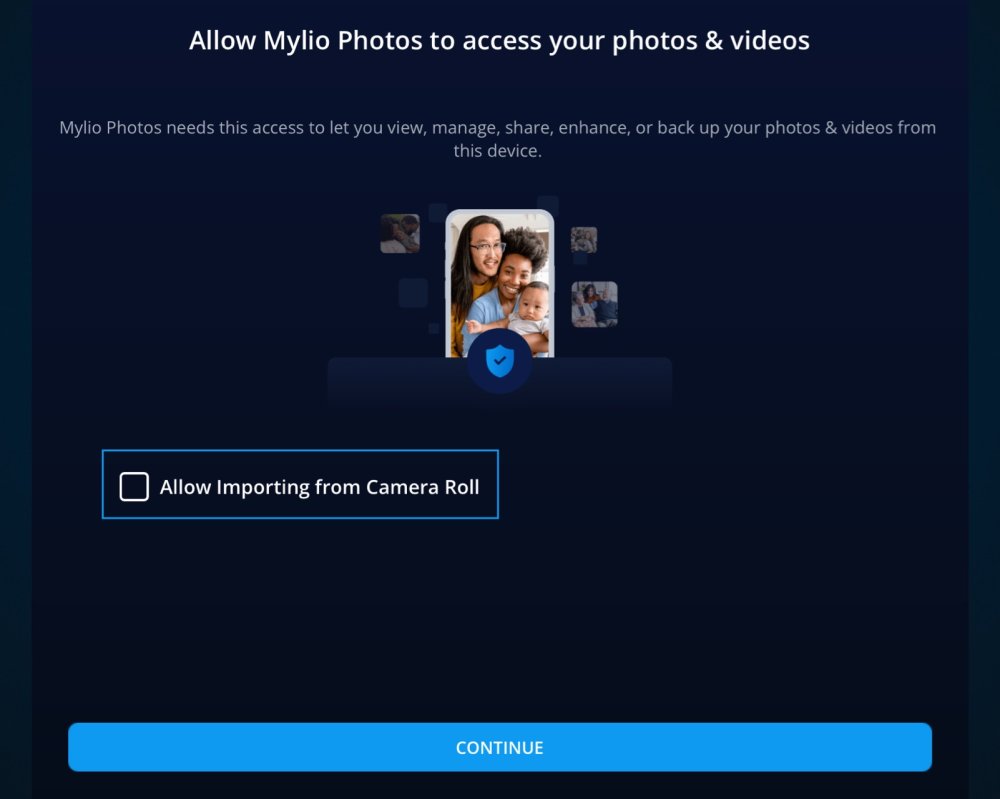
If you’d like to automatically import media from your phone or tablet, check the box to Allow Importing from Camera Roll (iOS) or Allow Importing from Media Library, then click Continue.

Learn More: https://manual.mylio.com/topic/add-a-phone-or-tablet