Sharing your favorite photos with your Flickr community is simple with Mylio Photos. Whether you’re on your computer or mobile device, you can effortlessly export individual images, entire albums, or even folders directly to Flickr.
Select your photo(s): Choose a single image or a series of images that you’d like to post to Flickr.
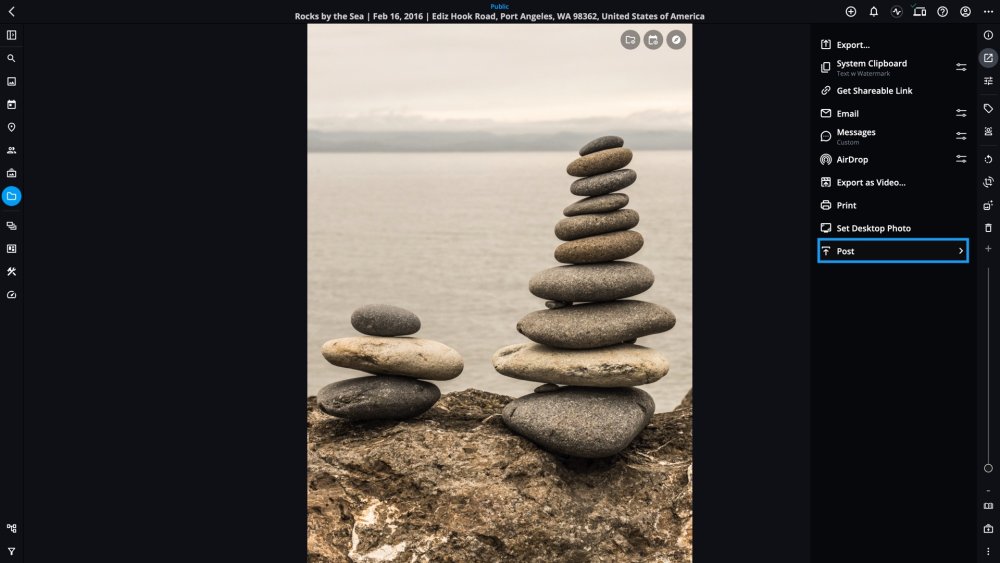
Click the Share icon
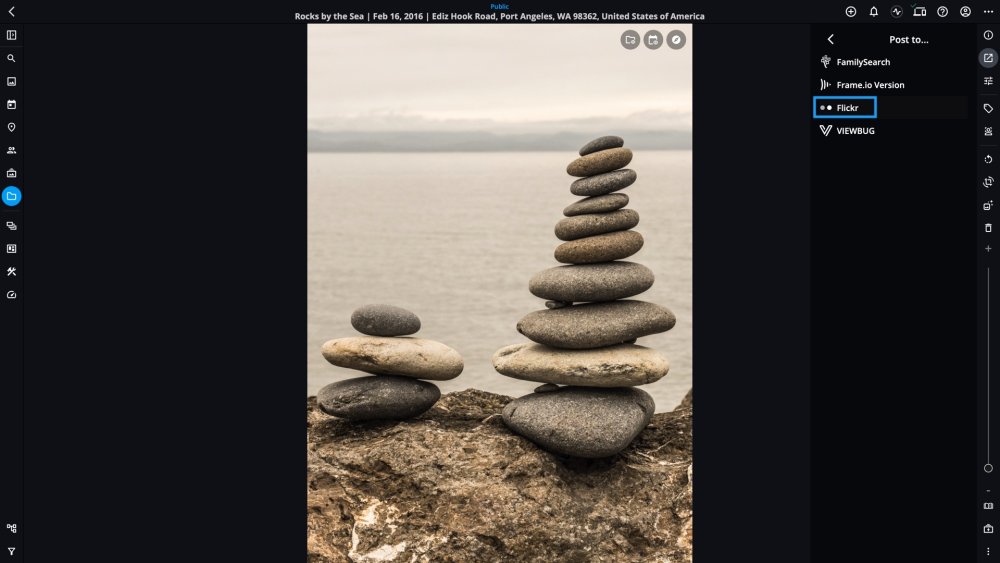
and choose Post > Flickr.
If this is your first export to Flicker, you’ll be prompted to log in and grant Flickr permission to allow uploads from Mylio Photos.
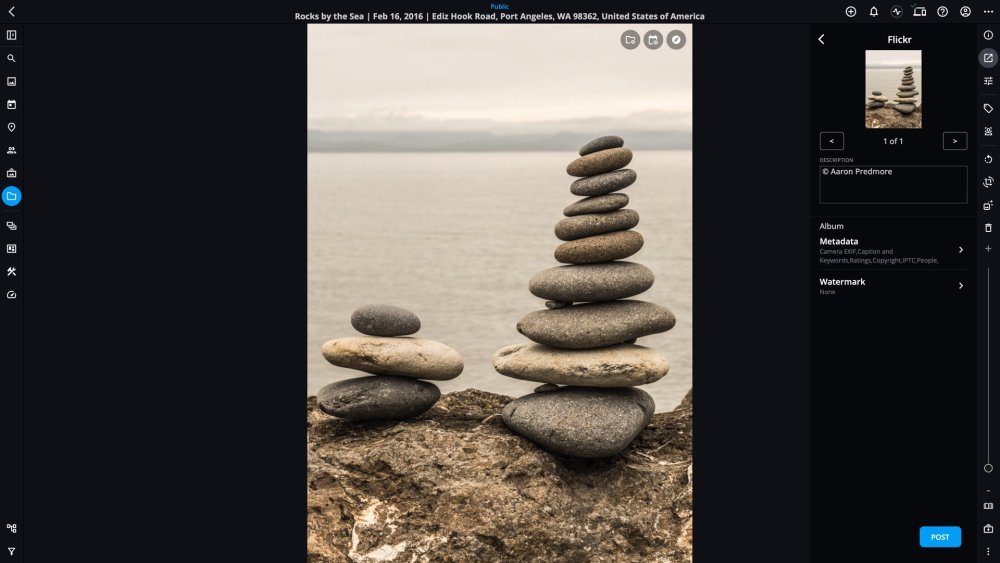
Enter a Description, choose a Flickr Album (or create a new one), select the Metadata you want to be included in your upload, and if you’d like to apply a Watermark to your photo.
If you’re uploading multiple images, use the arrow buttons beneath each photo thumbnail to adjust the settings for each photo.
When you’re ready to upload, click Post to send your photos to Flickr.
Once the upload is complete, your browser will open and ask you to confirm the settingsfor your photo(s). Make any necessary adjustments, then click Save.