
If you decide to stop using Mylio Drive+ with SecureCloud Storage, please follow the instructions below to remove and unregister Mylio Drive+ from the Mylio Photos application before removing it from your account.
Step 1 – Switch Mylio Drive+ to the Catalog Only Sync Policy
- Click on the Dashboard icon in the left sidebar, then choose Devices.
- Select Mylio Drive+, then choose Device Sync Policies.
- From the Preset menu, choose Catalog Only, then click the Apply Changes button to confirm the change.
Step 2 – Clear the Cache for Mylio Drive+
- Click on the Dashboard icon in the left sidebar, then choose Devices.
- Select Mylio Drive+ to open the device settings.
-
Click the Clear Cache button. Mylio Photos will show the number of optimized and original-quality (full-resolution) files that can be cleared from the cache. Complete the process by clicking the Clear Cache button.
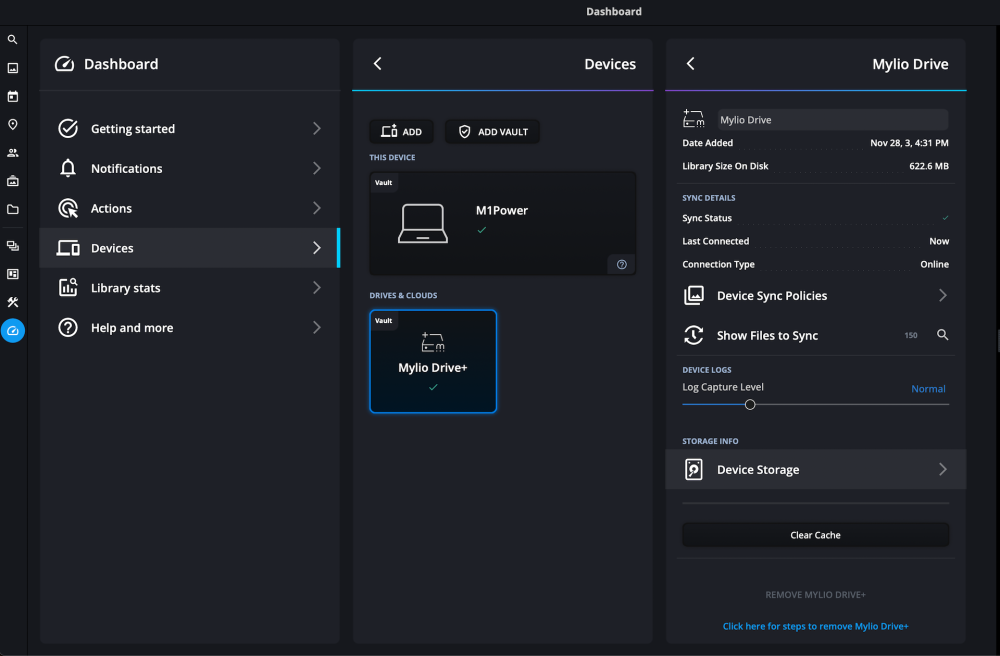

/assets/09e612123e1a2cc407ae260324911ab6832b74b1e7f48bcfeb2c33631c7d98af.png**WARNING**: The “Clear Cache” function will only work if the files stored in Mylio Drive+ are also stored on a local Vault or another device.
Step 3 – Remove Mylio Drive+
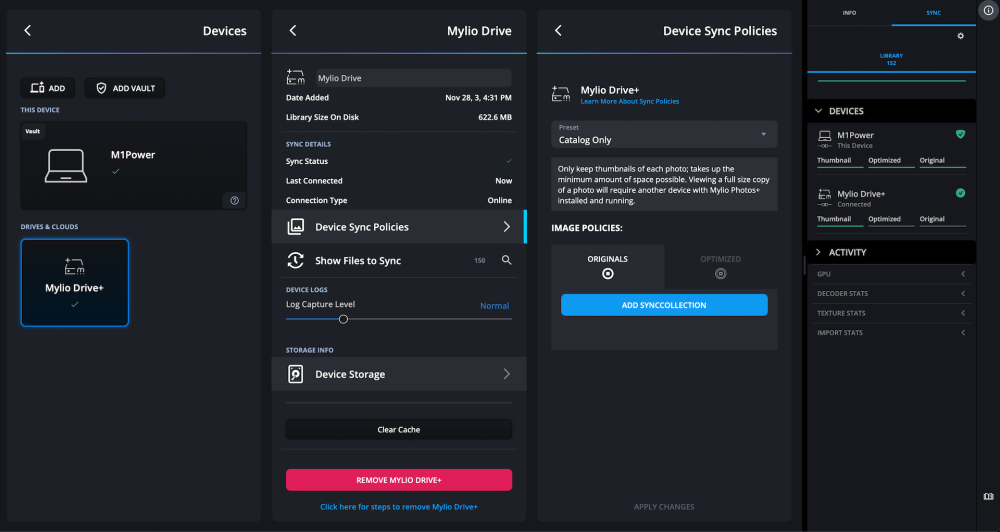
- Click on the Dashboard icon in the left sidebar, then choose Devices.
- Select Mylio Drive+ to open the device settings.
-
Click the Remove Mylio Drive+ button.
-
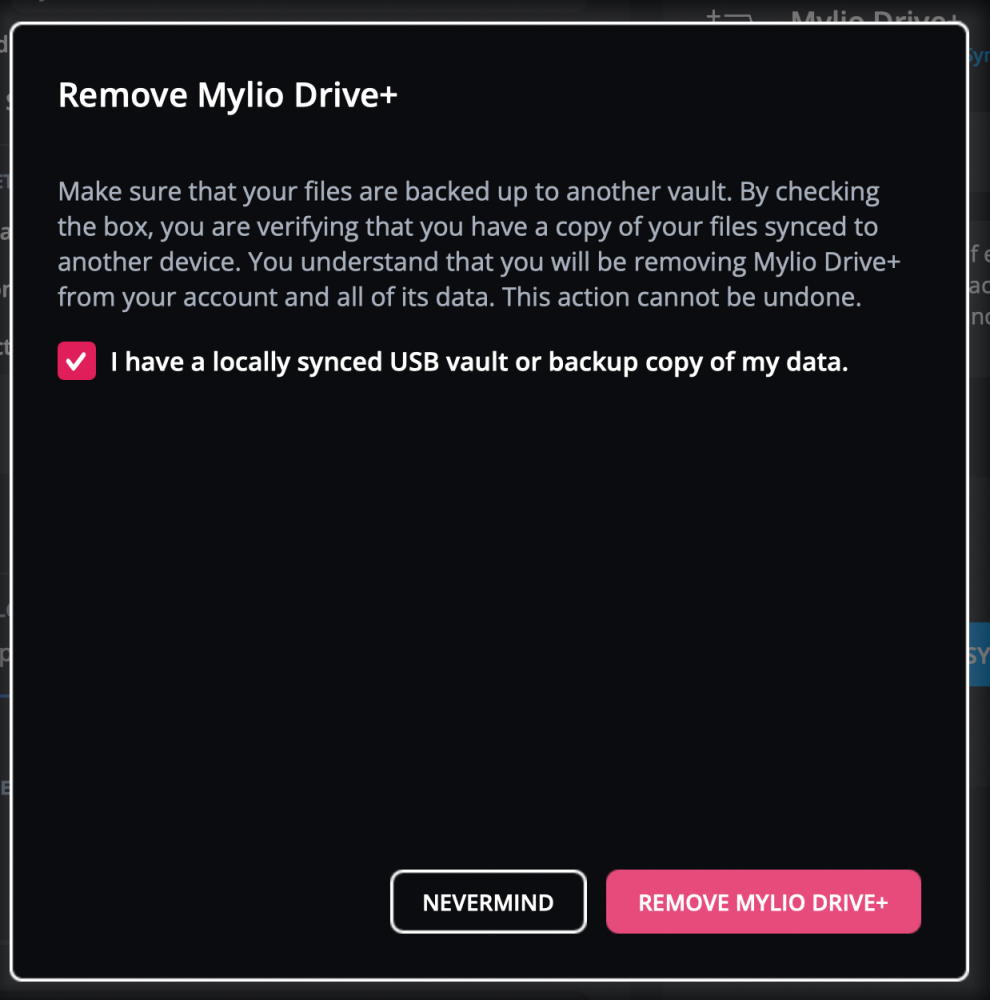
Tick the box to confirm that you have a locally synced USB vault or backup copy of your data, then click the Remove Mylio Drive+ button.
-
Click the button to Cancel SecureCoud Storage to open the account page in a web browser and confirm your subscription cancellation.
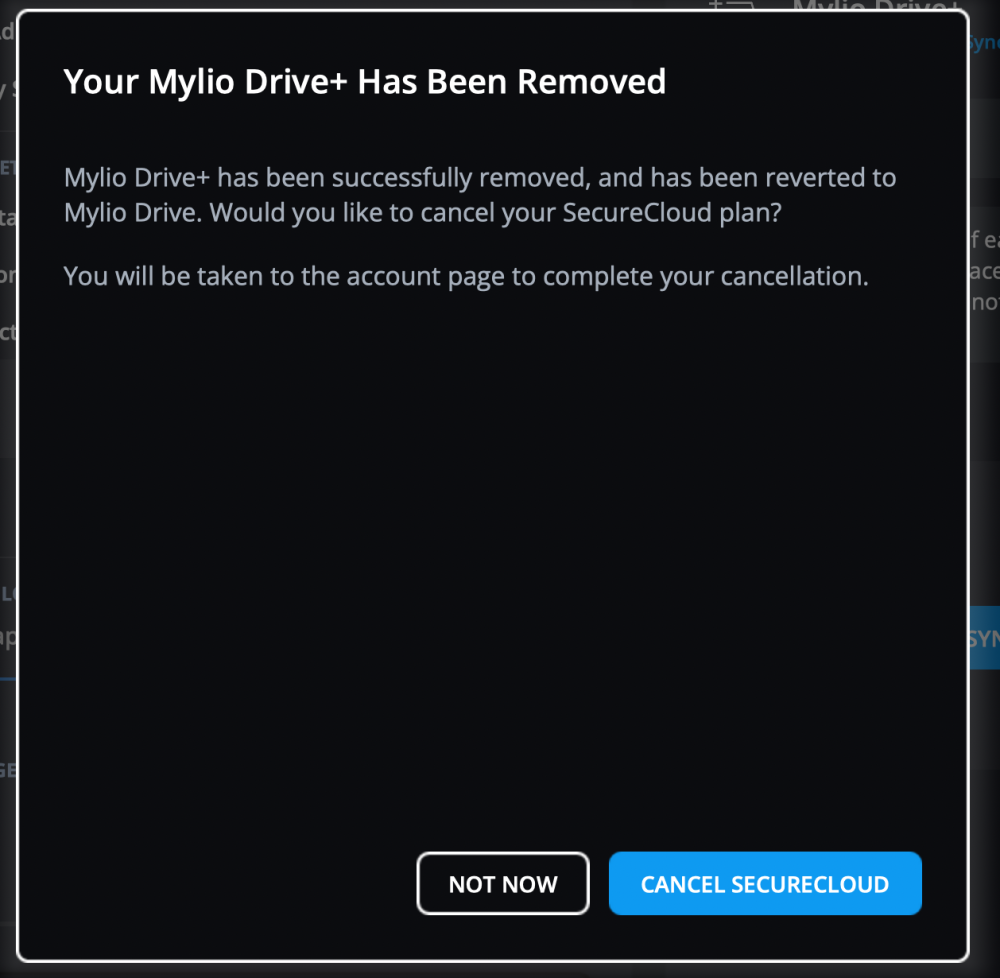


If you’re using an iOS device (iPhone or iPad), you can cancel your SecureCloud subscription via the Apple App Store or by canceling it directly from your Mylio account at account.mylio.com.
NOTE: You can also remove Mylio Drive+ by logging in to your Mylio account via a web browser at account.mylio.com. After completing steps 1 and 2 above, go to Manage Devices and choose Remove for Mylio Drive+.